Project logos and branding
Override the workspace logo and add client or partner logos to a calendar.
Last updated 4 months ago
Each project can carry its own logos, which appear on the calendar, its share links, and its exports.
Where to set them
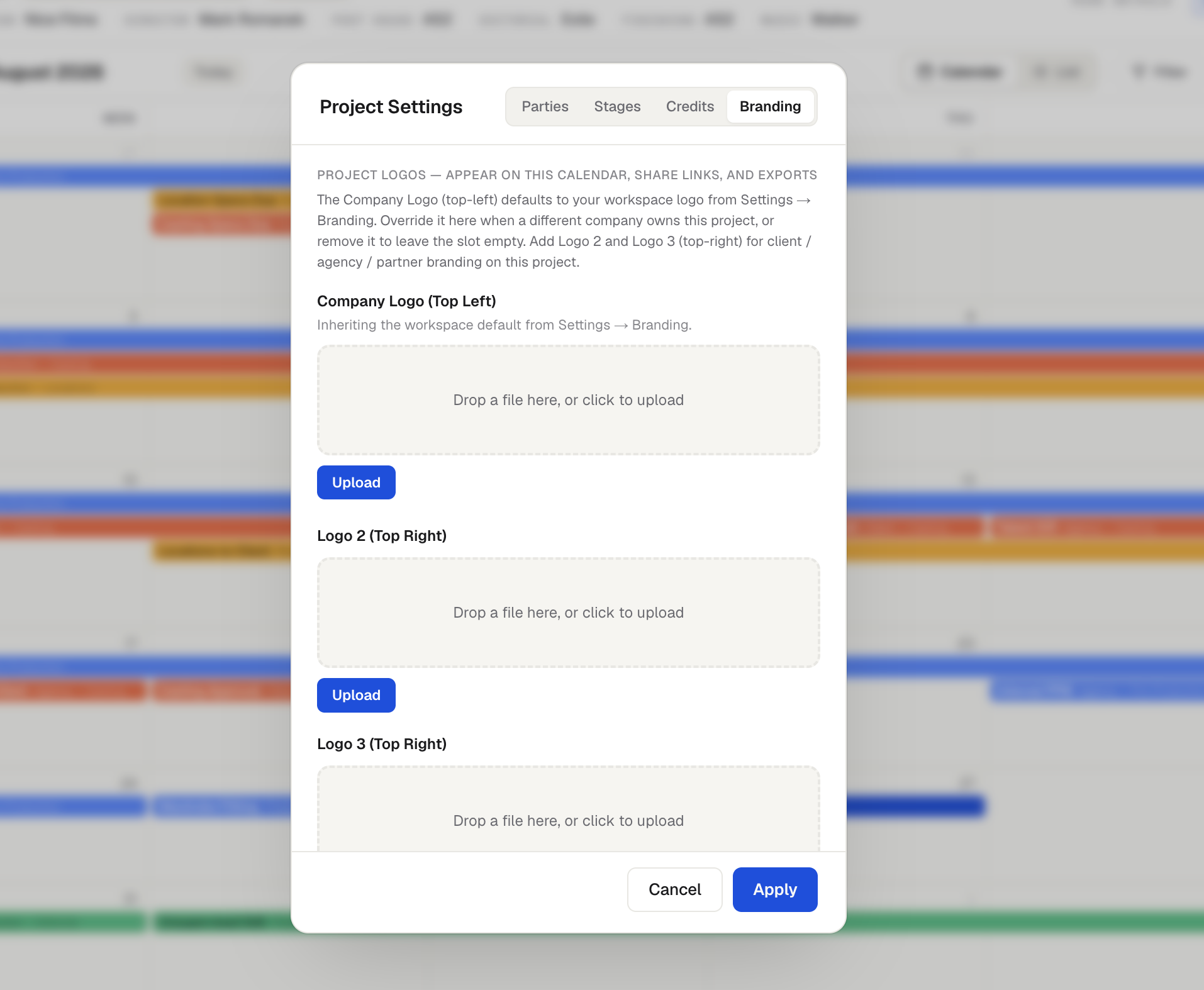
Open the project's Settings and go to the Branding tab.
Company logo (top left)
The Company Logo (Top Left) defaults to your workspace logo from Settings > Workspace. Override it here when a different company owns this project, or remove it to leave the slot empty.
Logos 2 and 3 (top right)
Add Logo 2 and Logo 3 in the top-right slots for client, agency, or partner branding on this project.
On exports and share links
Logos show on the calendar and its share link. In the export window, the Include section has a toggle for each logo (Company Logo, Logo 2, Logo 3) so you can choose which ones appear on a given PDF or PNG.
Was this helpful?
Still need help? Ask the team