Organizing with folders and subfolders
Create, nest, color, and add logos to folders.
Last updated 3 months ago
Folders keep your libraries tidy. You can nest them as deeply as you need.
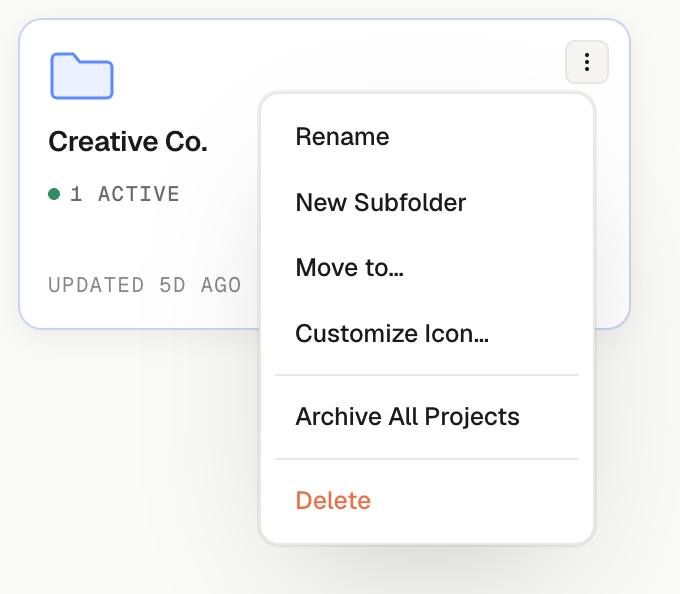
Create a folder or subfolder
In a library, click New Folder.
To nest one inside another, open a folder's menu and choose New Subfolder.
Rename or delete
Use the folder's menu to Rename or Delete it. Deleting a folder moves any projects inside it to Library (Unfiled), so your projects are never lost when a folder is removed.
Change the folder icon color
Right-click a folder and choose Customize Icon…, then pick one of the preset colors.
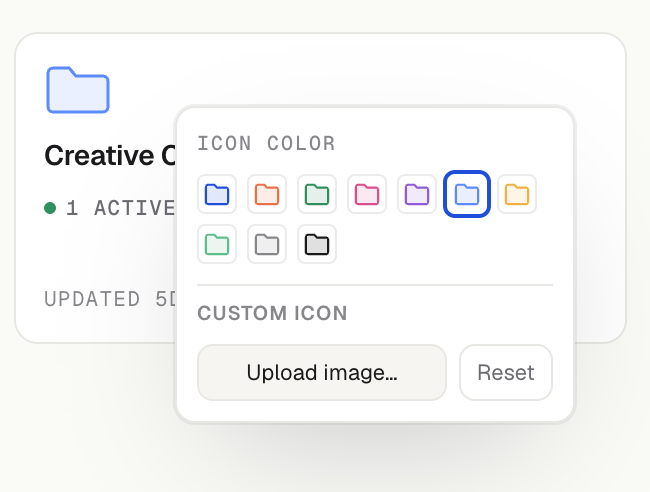
Use a logo instead of the icon
In that same Customize Icon… panel, under Custom Icon, upload an image to replace the folder icon. This is handy for client or brand folders.
Folders in the sidebar
Folders appear in the left sidebar based on the library you are in: My Library folders show under My Library, and Team Library folders show under Team Library. You can drag a project card onto a sidebar folder to file it there. With several items selected, dragging any one of them moves the whole selection. See Selecting multiple projects and folders.
Was this helpful?
Still need help? Ask the team