Coloring your calendar
Color events by party or stage, or override a single event's color.
Last updated 4 months ago
Color makes a busy calendar readable at a glance. You control it in two ways.
Color by party or stage
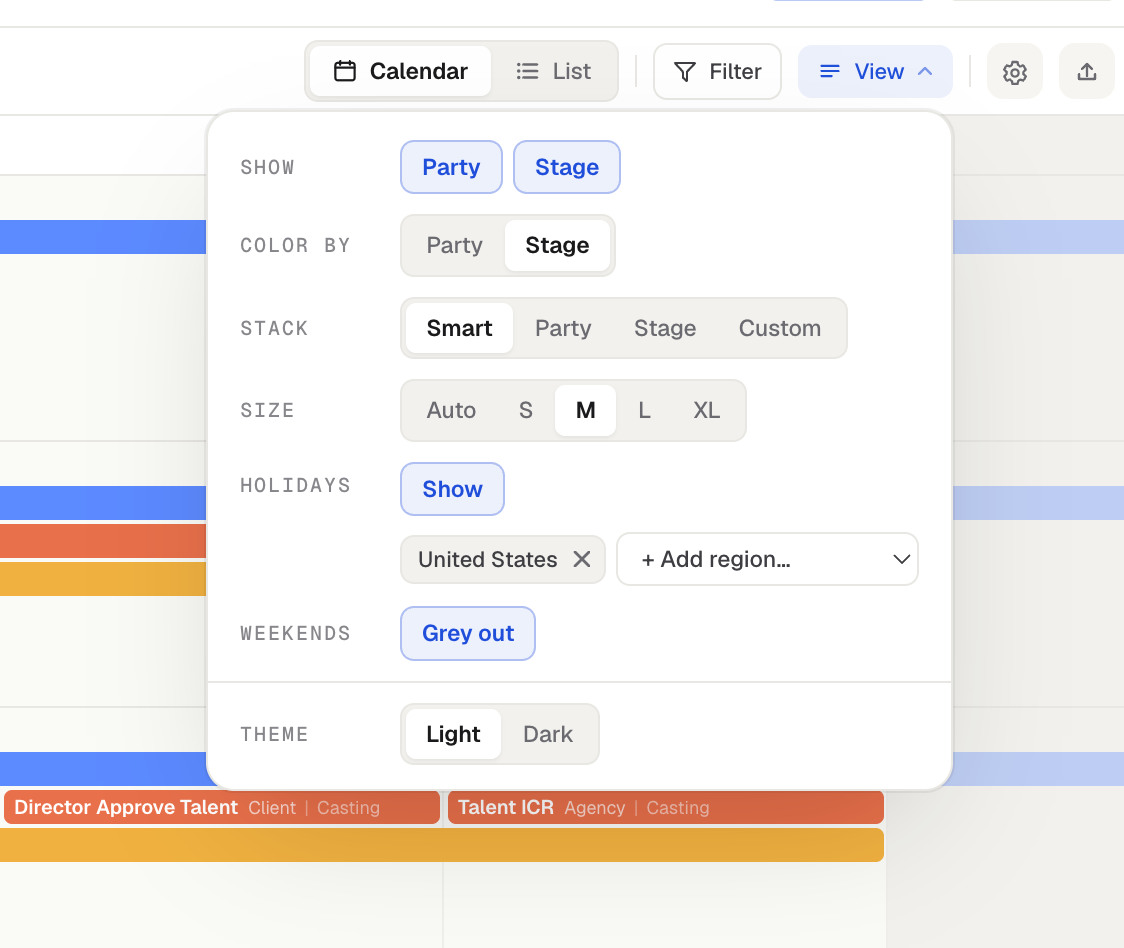
Open View and set Color by to Party or Stage. Every event then takes the color of its assigned party (or stage). You set those colors on the Parties and Stages tabs in Settings, using the color swatch to the left of each name.
With Color by Party, each event is colored by the party it is assigned to.
With Color by Stage, each event is colored by its stage.
Override a single event
When you create or edit an event, the Color field is set to Auto, which follows your Color by setting. Pick a specific color instead to override just that one event. That color wins over the Color by setting.
To undo an override, edit the event and set its Color back to Auto.
Was this helpful?
Still need help? Ask the team